Adding statements to a proof using the diagram
You can mark segments and angles on the diagram and use the marks to add statements to the proof.
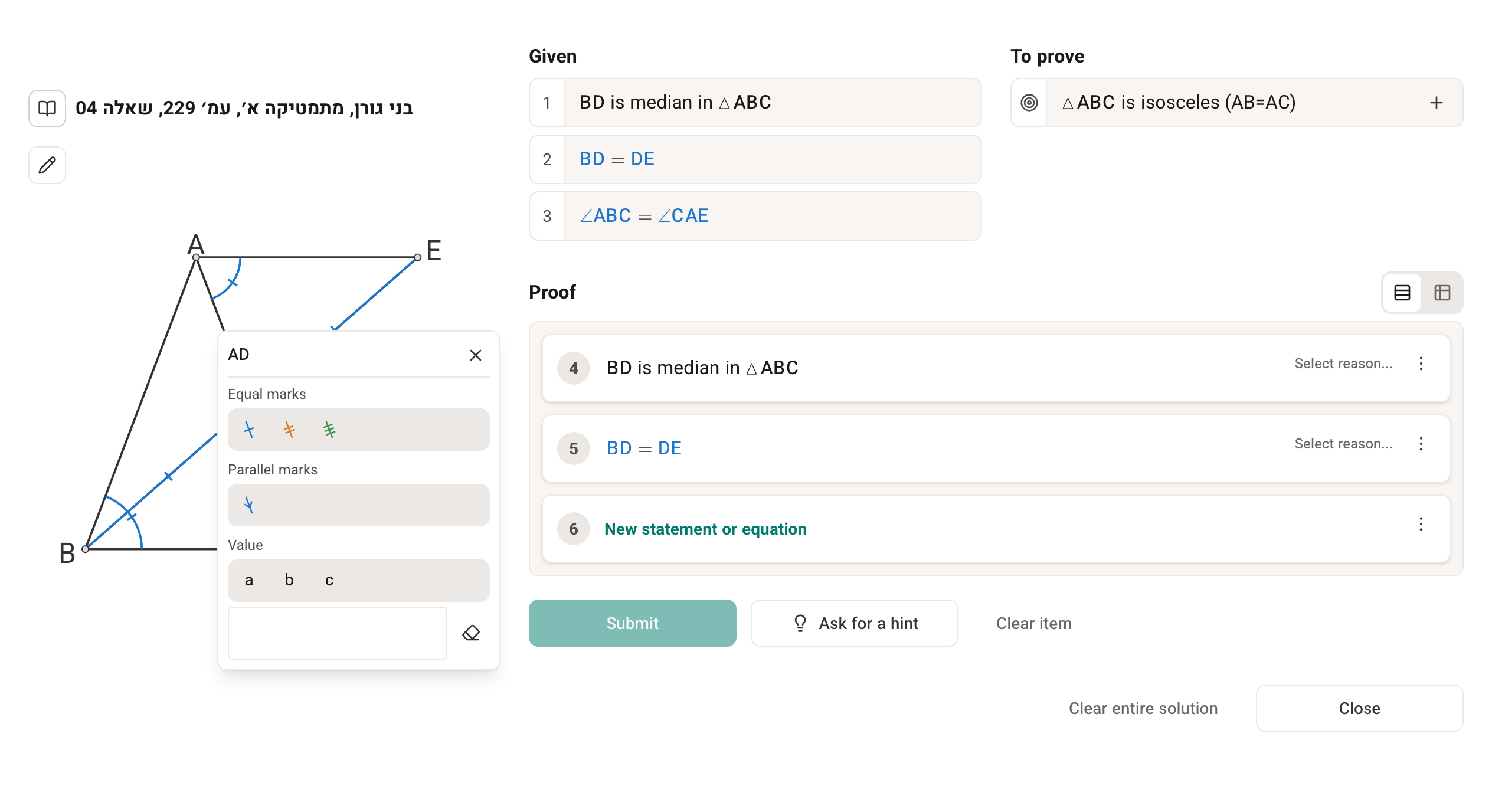
When you click an angle or a segment on the diagram, a menu opens with different options for marking the element: Congruence marks, Parallel marks (for segments), Right angle (for an angle that looks like a right angle on the diagram) and Value.
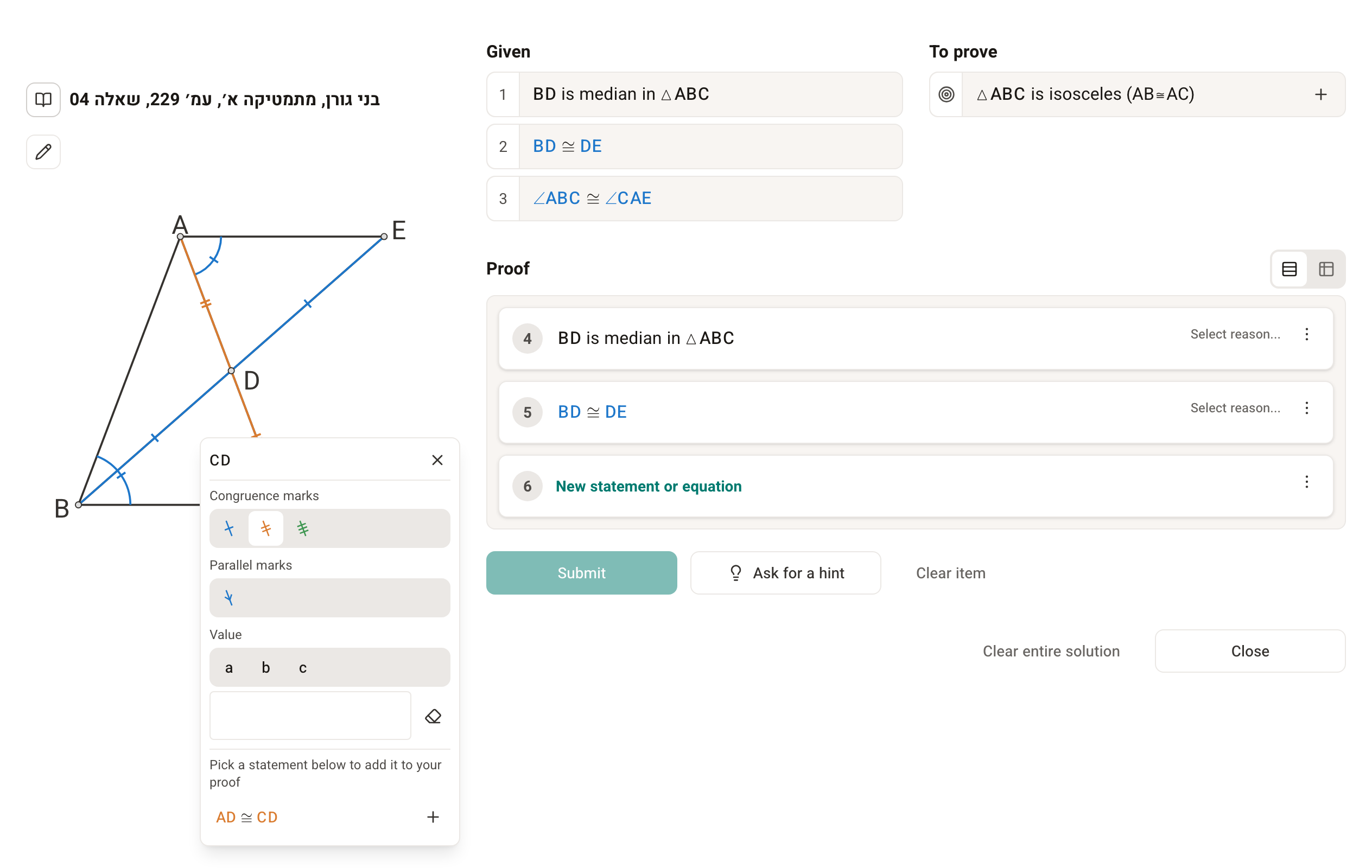
When you mark two or more elements with the same congruence mark, the menu suggests the matching statement under Pick a statement below to add it to your proof. Clicking the statement adds it to the proof. If a mark doesn't suggest a statement, for example when you've marked only one element, the menu closes right away and you can move on to the next element.
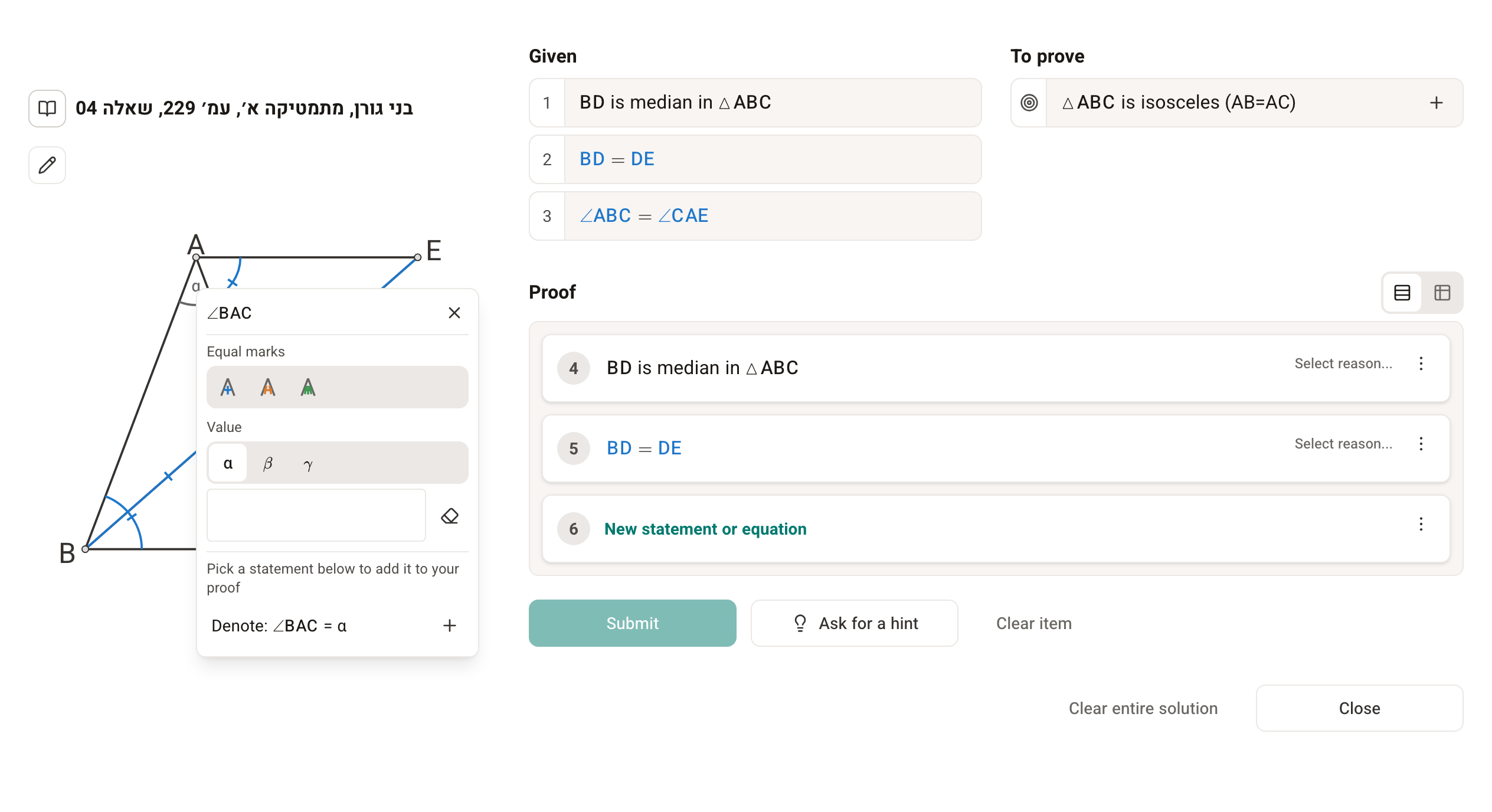
A value mark also suggests a matching statement, for example ∠BAC = α. So do right angle marks and parallel marks.
The marks themselves are not part of the proof: a statement enters the proof only when you pick it from the list. It is added without a reason, and you choose the reason yourself. For some statements the system fills in the reason and marks it Auto. A statement that is already in the proof shows a ✓ (Already in proof).
Deleting marks and statements
- To delete a mark, click it again in the menu.
- To delete a value you typed, click the eraser (Clear value).
- To delete a step in the proof, click Delete step in the step's menu (⋮).
Deleting marks on the diagram does not delete statements from the proof, and deleting a step in the proof does not delete your marks. The statements in the proof are marked on the diagram automatically, so a statement you added to the proof stays marked even after you delete your own mark.