The class page and class report
The Class progress page (in the Teacher menu) shows one class in two tabs: Tasks and Students. From the menu, it opens on the class you last worked in. You can also reach any class by clicking its name on the class pages. The ⋯ actions menu at the top of the page has the class's actions (Edit class, Invite students and so on; see Classes and the classes report).
At the top of each tab there is a summary of the class: Scope (the number of tasks, questions and students, and an assessment of the class), Progress (the state of the work on all the questions assigned to the students, error reports and late submissions) and Understanding (the common mistakes, with Examples).
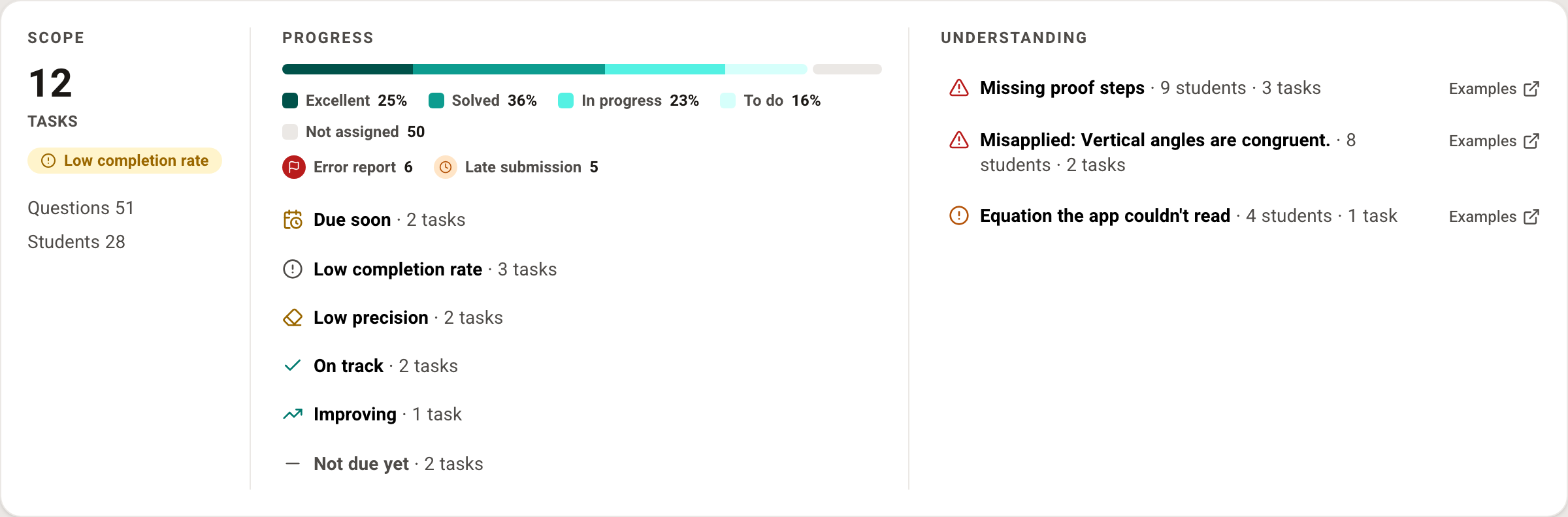
Tasks
The Tasks tab includes every task given to the class since it was opened, grouped by due date: Upcoming, Last week, Last month and so on, older tasks by year, and at the end tasks with No due date. You can show the tasks as cards or as a table, with the columns Task (a link to the Task report), Schedule, # Questions, # Students and Class progress.
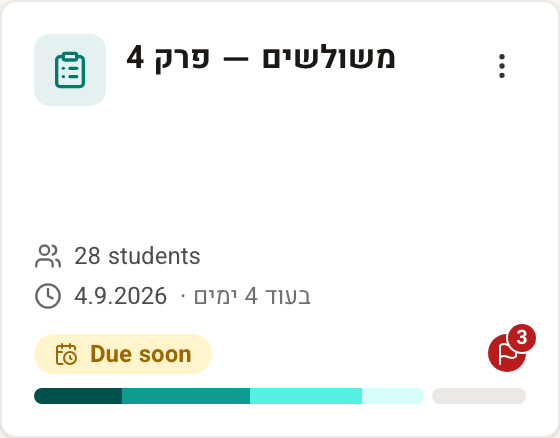
From this page, you can create new tasks for the class (New task). For an existing task, its ⋯ actions menu lets you view the Task report, Edit questions, change the due date and the other settings (Task settings), Copy task to a class, Share task and Remove from class.
You can also create a class report for any date range from this page (Export to Excel).
Students
The Students tab includes a list of the class's students, with the columns Student (a link to the Student report), # Tasks, Progress and Latest task. In each student's ⋯ actions menu you can manage the student's account - reset the password, edit the name, move the student to another class, remove them from the class and so on (explained in Managing student accounts). You can also create a class report for any date range from this page.
The class report
The class report is an Excel file. When you click the Excel icon, you choose a date range (From date, To date). The report includes the tasks due in that range, as well as tasks with no due date. The file has two sheets:
- The Students sheet lists all the students in the class, with a summary for each student: the number of tasks and questions assigned to them and how many they solved, their average score, questions they solved outside a task, and the number of their tasks in each state (Excellent, Solved, In progress, To do, Not assigned).
- The Tasks sheet lists all the tasks given to the class in the date range, with a summary for each task: the due date, the number of questions, the number of students who started the task and who completed it, the average score, and the number of students in each state.
You can produce the same report from the User management page too, after choosing a class.